How Nudge works
A nine-screen walkthrough of the actual app. These are screenshots from my own daily use — a real project, real goals, real journal entries. Nothing staged for marketing.
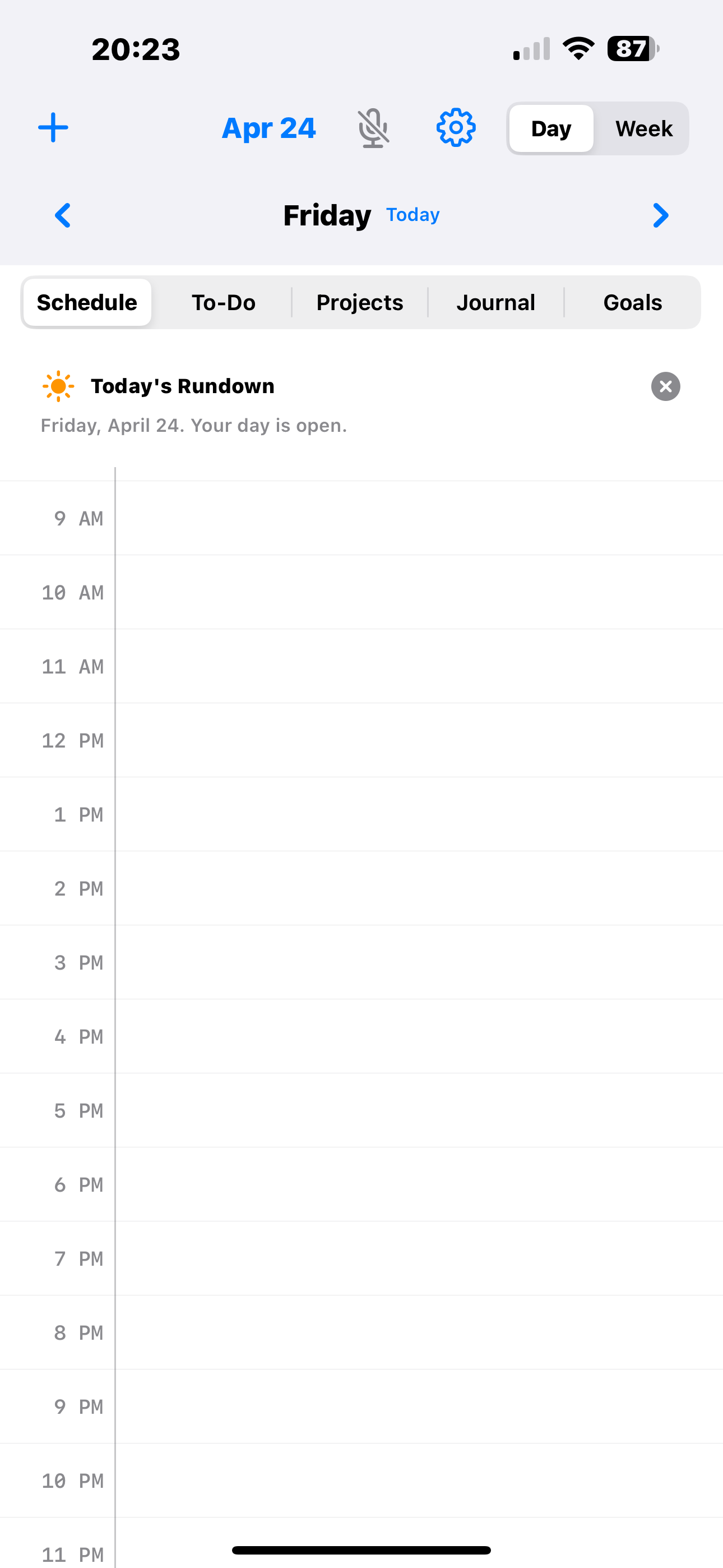
Your day as a canvas, not a to-do avalanche
The Schedule view is where most days start. Hour by hour, top to bottom, with your calendar events dropped in at the right times. Today's Rundown at the top tells you in plain English how your day shapes up — "busy morning, open afternoon" or, on a good day, "your day is open."
Tap any empty hour to create an event there. Tap any existing event to edit it. The big + in the top-left creates something at the current hour. No date picker ceremony, no modal gauntlet.
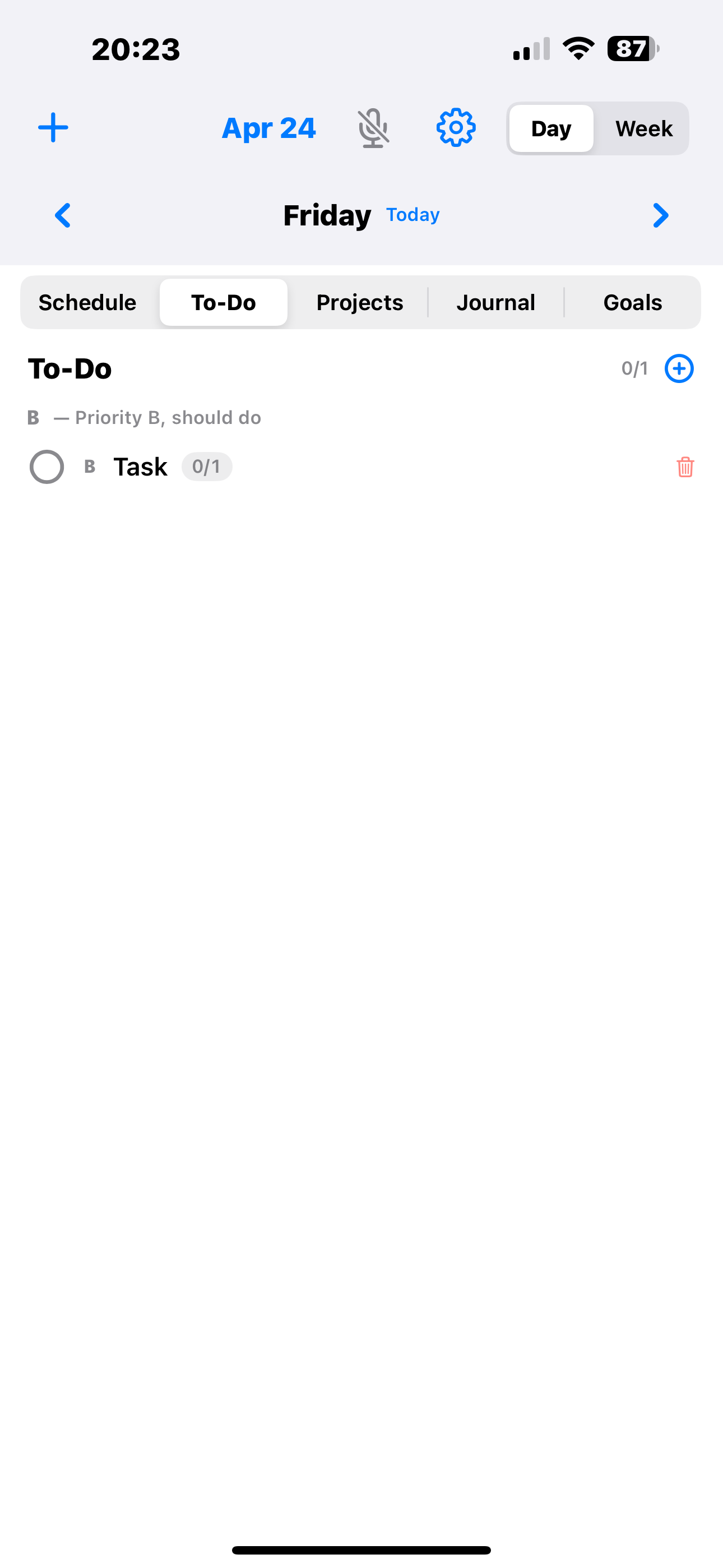
Tasks with priority that actually means something
The To-Do tab is tasks for today, grouped by Eisenhower-matrix priority: A (must do), B (should do), C (nice to have), D (delegate or drop). Each task shows its priority badge inline so you can't miss it while skimming.
Tap a task to edit it. Swipe or tap the trash to delete. Check the circle to complete. That's the whole interaction surface.
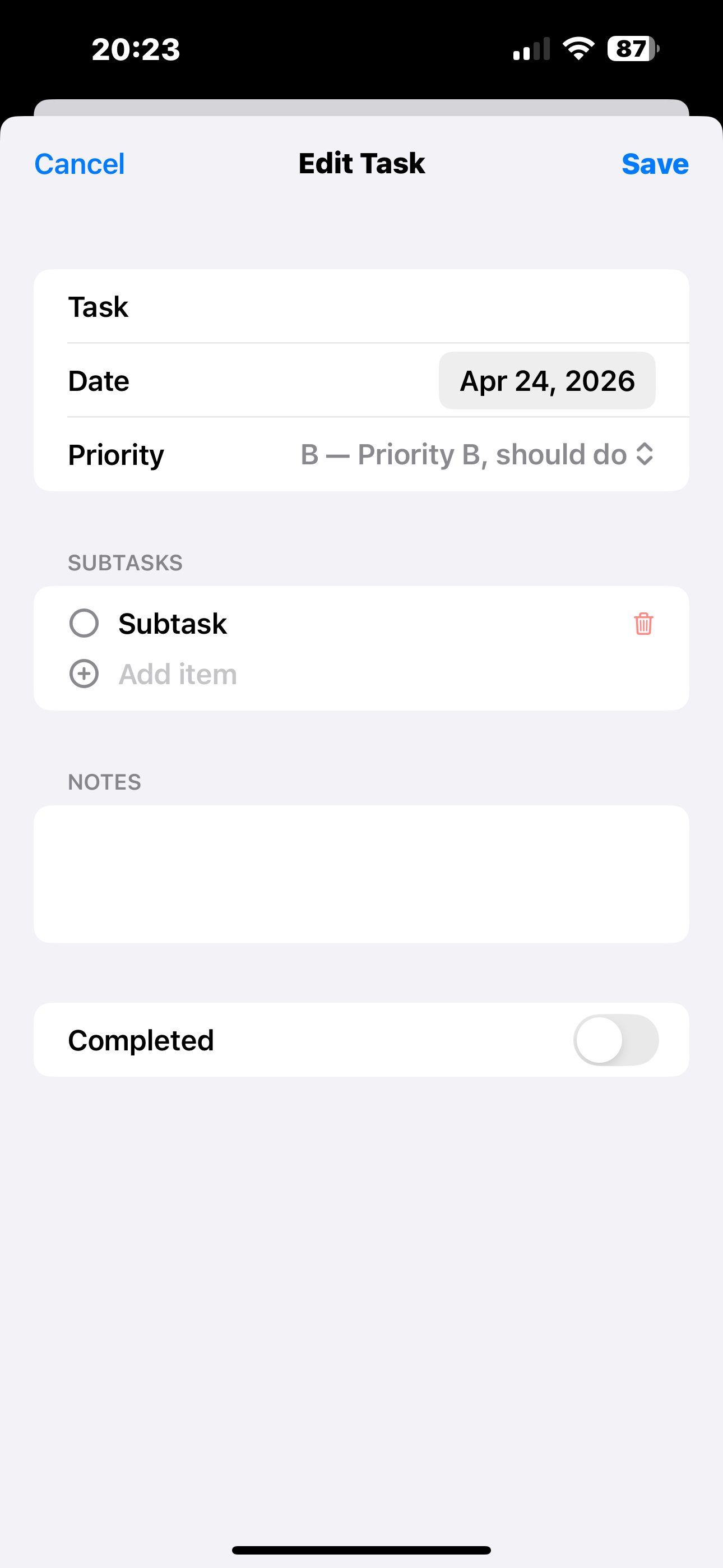
Subtasks and notes, without a project-management degree
Every task can break down into subtasks when it needs to — packing lists, multi-step errands, the three things to remember to grab from the grocery store. Add them at task creation or later. Each subtask has its own completion toggle.
Notes field is a plain freeform box. Nothing to configure, no markdown flavor to learn, no attached database. Type or paste whatever helps you do the task.
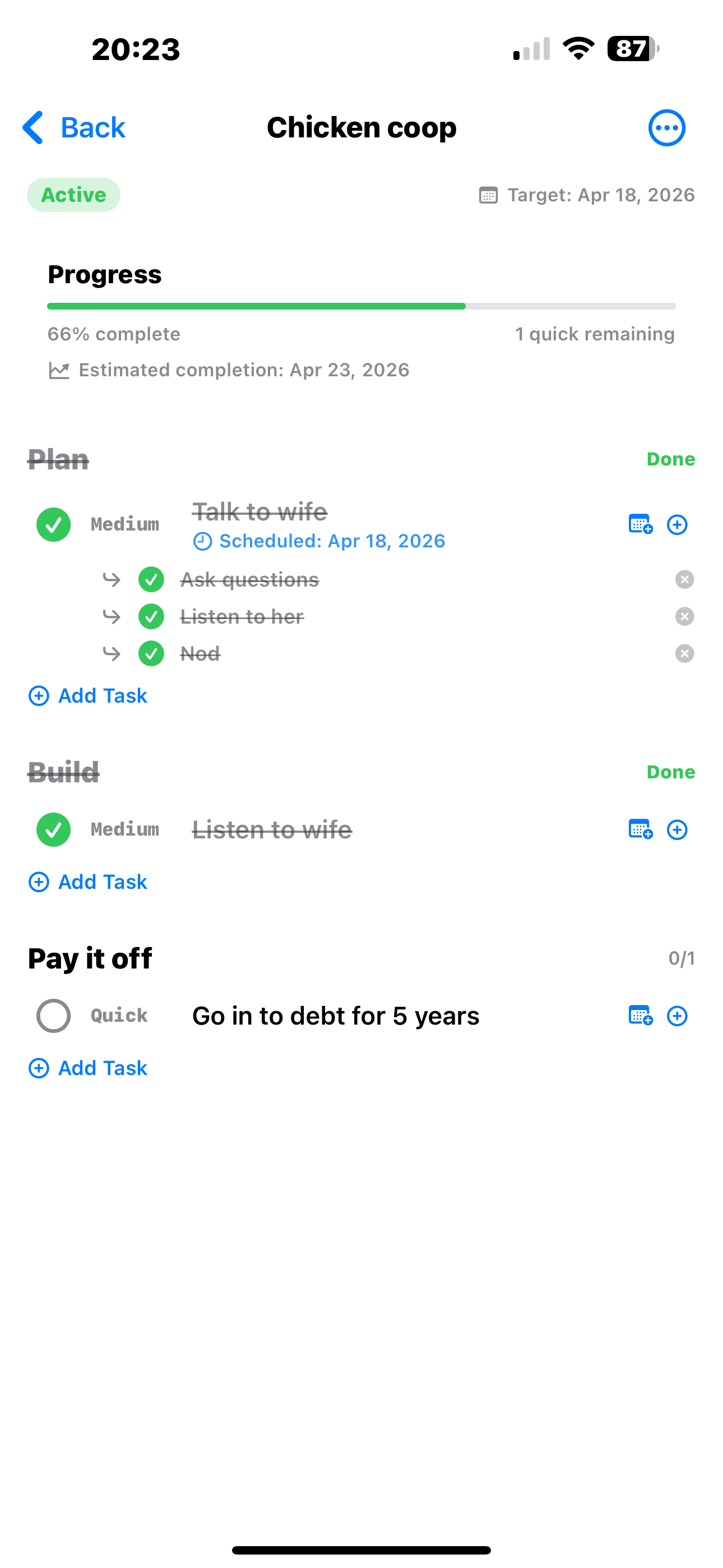
Projects are phases of tasks, not a Notion workspace
A project is a target date, a progress bar, and phases of tasks. Each phase collects the things that need to happen in that stage. When a phase's tasks are all done, the phase gets marked done. The top-level progress reflects the whole effort.
This example is a real project of mine — building a chicken coop. The first two phases (plan, build) are done; one quick task is left. Nudge's progress math gives me an honest estimated completion date based on my actual pace, not wishful thinking.
- Phases collapse when done to keep the view clean
- Tap any task to schedule it onto your calendar
- AI-assisted project breakdown (optional) — describe your project, get a phase/task outline
Voice-first journaling for when typing is a tax
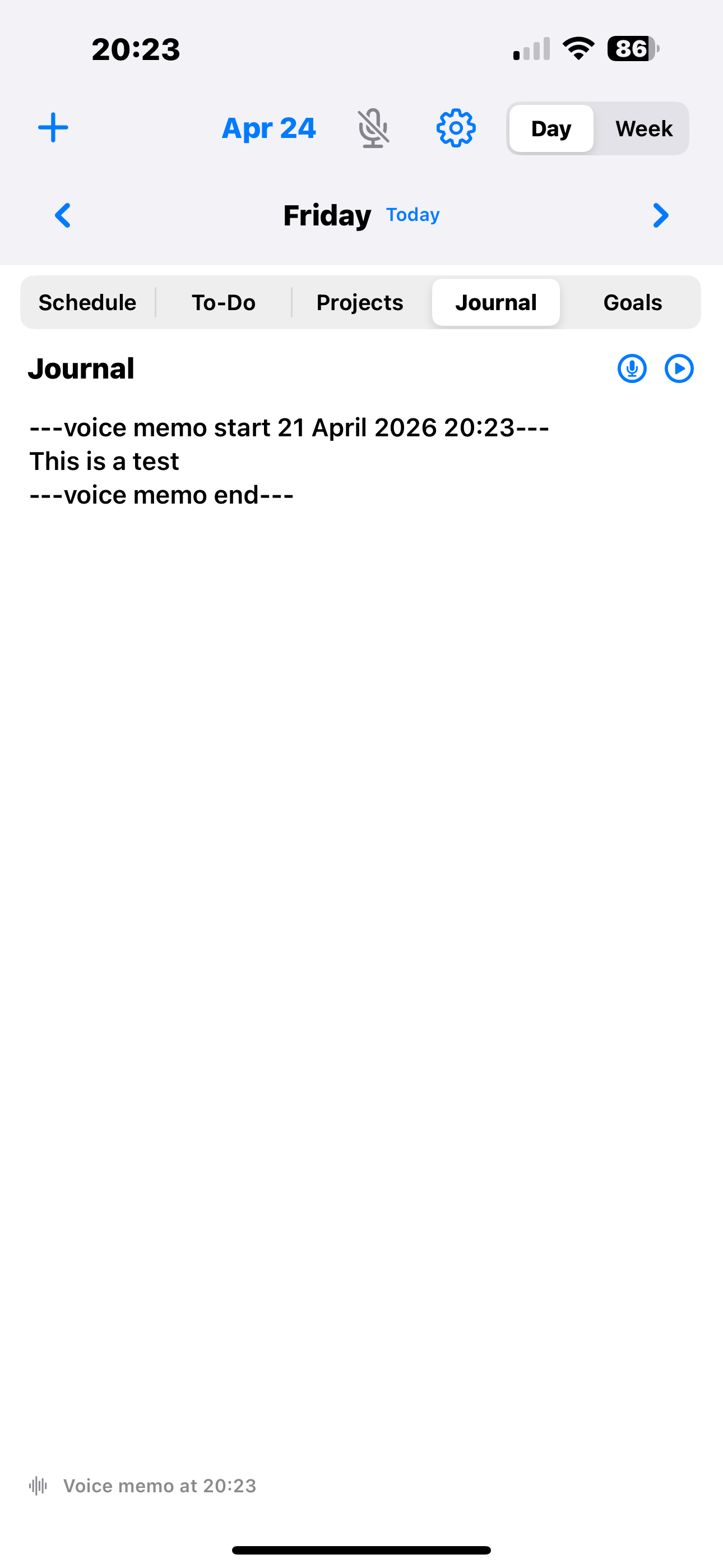
The Journal tab is one entry per day. Tap the mic, speak, tap stop. The transcript goes in the text, the original audio stays attached for playback. Type freely around it if you want — dictation and text coexist on the same page.
No mood pickers, no prompts to pick from, no "streak" gamification. Just a page per day that you fill however you want, voice or typed. Search works across every entry you've written.
Goals with deadlines, not just dreams
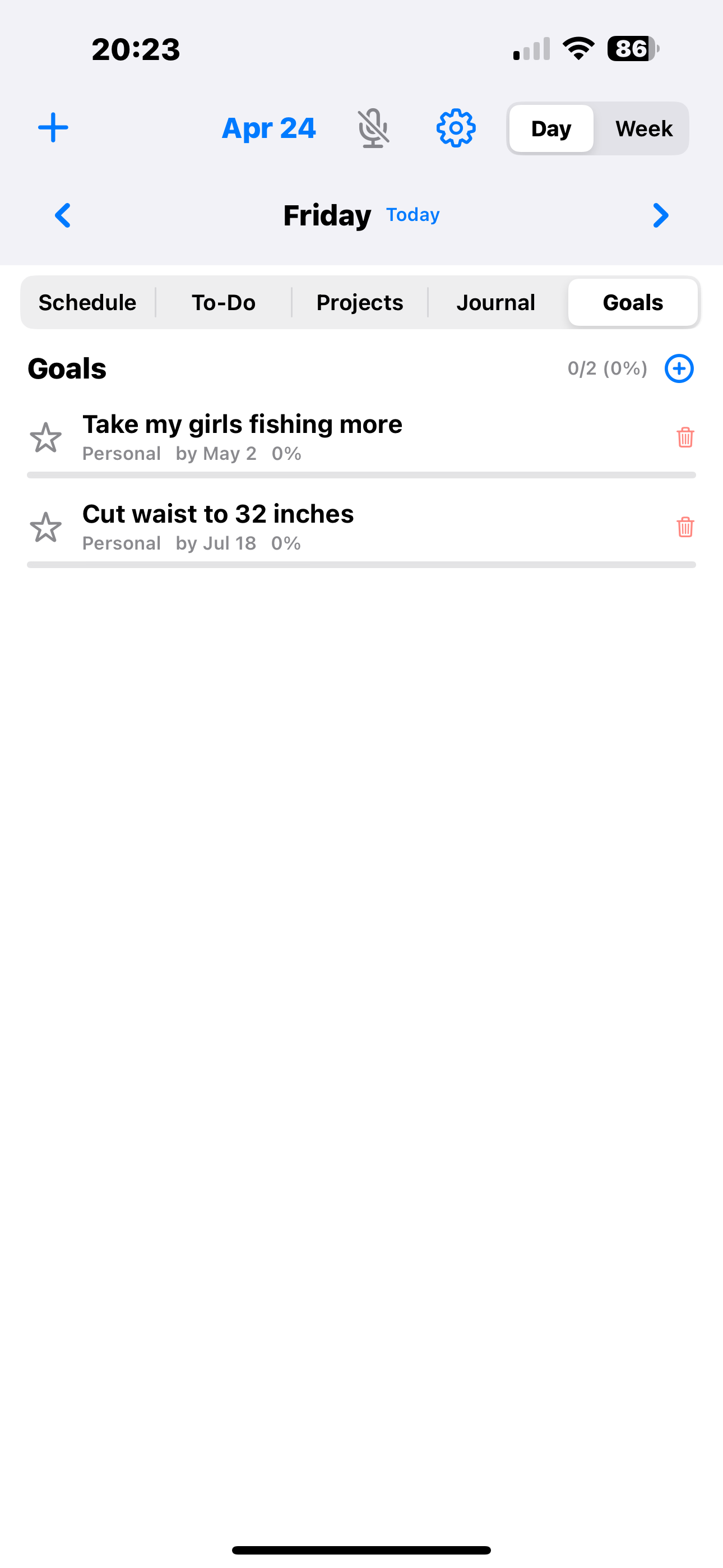
Goals are the longer arc: "take my girls fishing more," "cut my waist to 32 inches," "ship the beta by June." Each one gets a target date and a progress percentage. Nudge nudges you toward them during your daily planning ritual — not in a "you're failing" way, in a "remember this matters" way.
Linking tasks and events to a goal is optional but powerful — progress updates automatically as you complete related work. Starred goals sit at the top so the most important ones stay in your face.
Domains: the parts of your life that shouldn't blur together
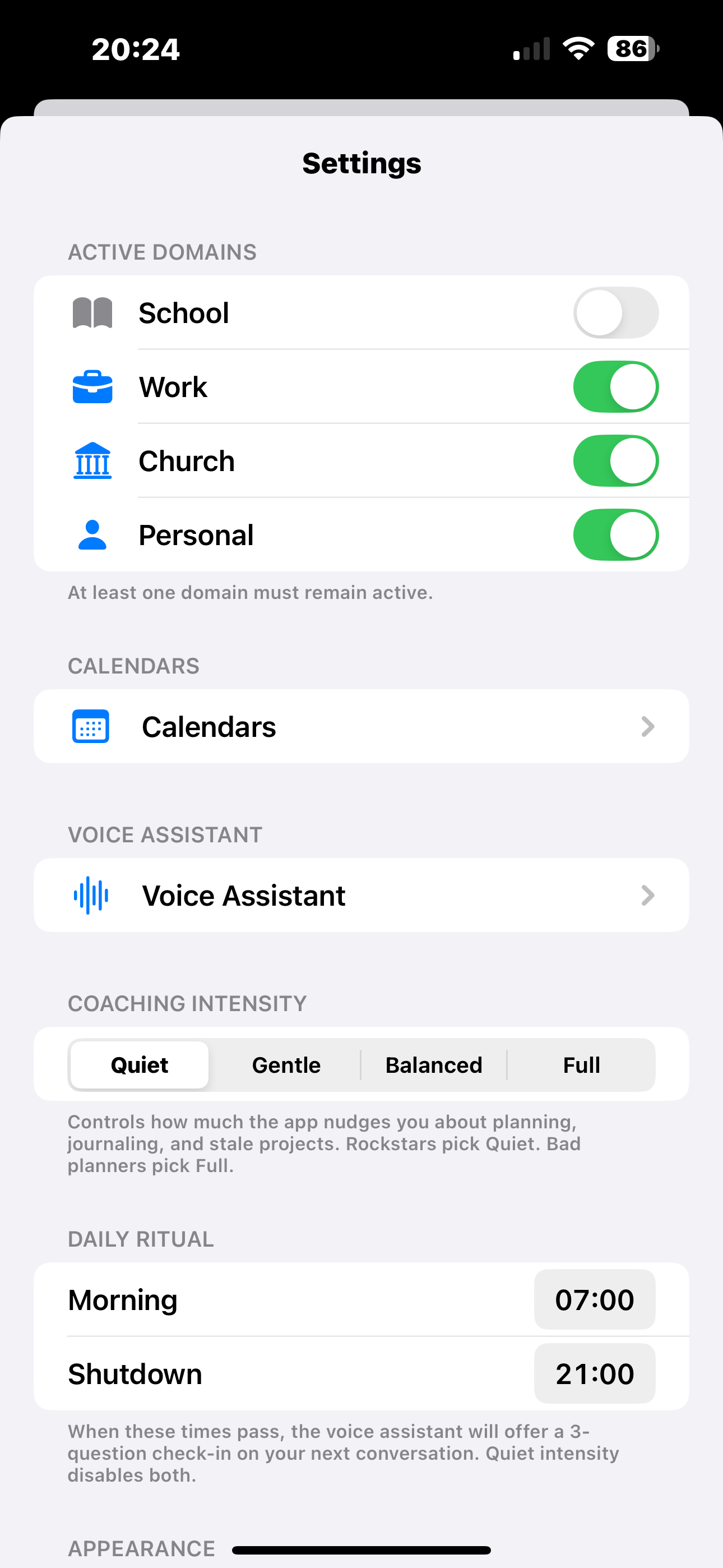
Nudge separates your life into domains — Work, Personal, Church, School — and you choose which are active at once. Turning a domain off hides its events and tasks without deleting them. Come Sunday, toggle Work off. Weekend brain.
Coaching intensity sets how much the app nudges you about planning, journaling, and stale projects. Rockstars pick Quiet and just use the tools. People rebuilding habits pick Full and get a daily morning ritual plus an evening shutdown ritual at the times you choose.
Your voice assistant, your API key
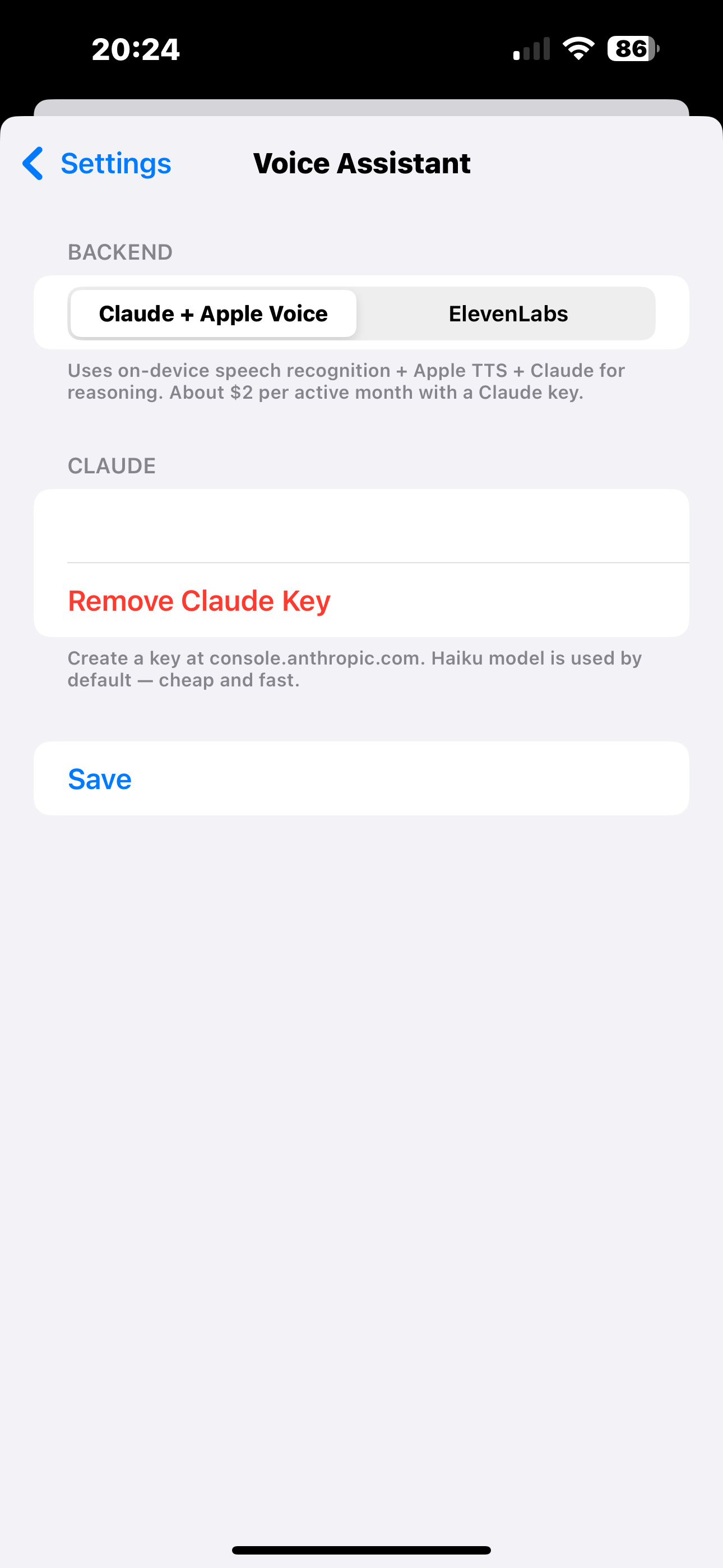
The voice assistant is optional. If you turn it on, you bring your own API key — either Anthropic (Claude) for cheap on-device-style responses, or ElevenLabs for premium voice quality. Your key is stored in the iOS Keychain; it never passes through me.
Why BYO-key? Two reasons. One: it keeps your voice transcripts off my servers because I don't have servers. Two: it keeps the app affordable — most months you'll spend a couple dollars, not a subscription markup.
- Tap-to-talk mic on every planner screen
- Does what you say: creates events, adds tasks, updates goals, journals
- Has full context of your planner so "move lunch to 12:30" just works
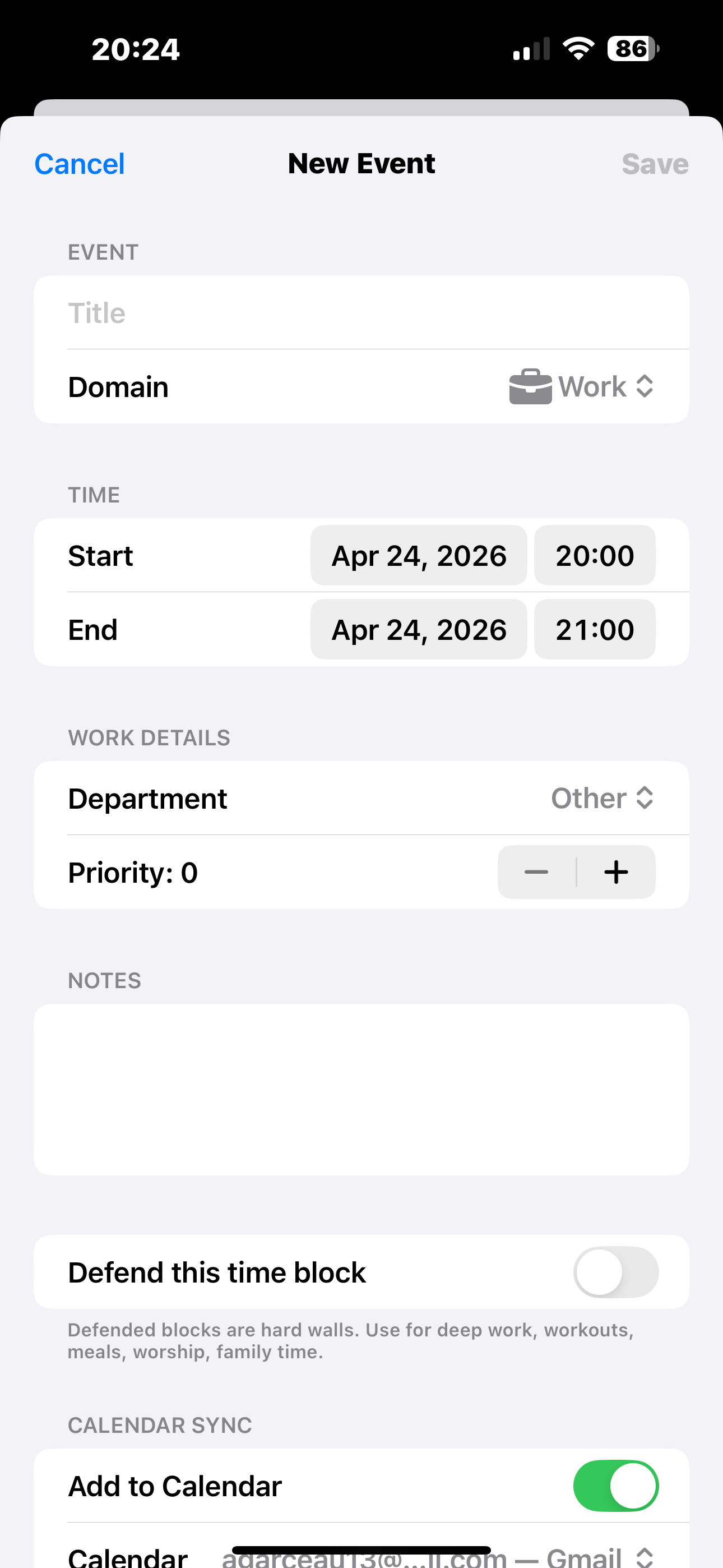
Events that defend your time
The New Event form has the usual fields — title, start, end, calendar — plus two things standard calendars don't do.
Domain tag. Every event belongs to one of your domains. When you toggle Work off for the weekend, this event disappears from the view. When it's Monday again, it's back.
Defend this time block. Flip this toggle for deep work, workouts, meals, family time, worship. Nudge treats it as a hard wall: the AI won't suggest scheduling anything over it, and the app warns you if you try to manually. Reclaim-style defended time, without Reclaim's pricing.
Events two-way sync with Apple Calendar, Google Calendar, or whatever else you've added to your iOS calendars. Make a change in Nudge; it's in your Apple Calendar ten seconds later. Make one in Google; it shows up in Nudge.
That's the app.
Nine screens, no sub-menus hidden three levels deep, no onboarding wizard that takes an hour. Open it, plan your day, move on.
Request a TestFlight invite